Slideshow Content - Display Visual Content from Any Source
Slideshows are BrandCast's most flexible content type, letting you display images, presentations, and graphics from multiple sources in a unified, professional display.
The Power of Slideshows
One Content Type. Unlimited Sources.
Unlike traditional digital signage that locks you into one content source, BrandCast Slideshows can display content from:
- 📊 Google Slides - Live-synced presentations
- 🎨 Canva Designs - Professional marketing graphics (Premium)
- 📸 Direct Upload - Your own images and videos
- 🔗 URL Import - Hosted images from any URL
- 📷 Google Photos - Family photo albums (FamilyCast)
Mix and match sources in the same display - use Google Slides for dynamic product catalogs, Canva for promotional graphics, and direct uploads for local event photos. All displayed seamlessly.
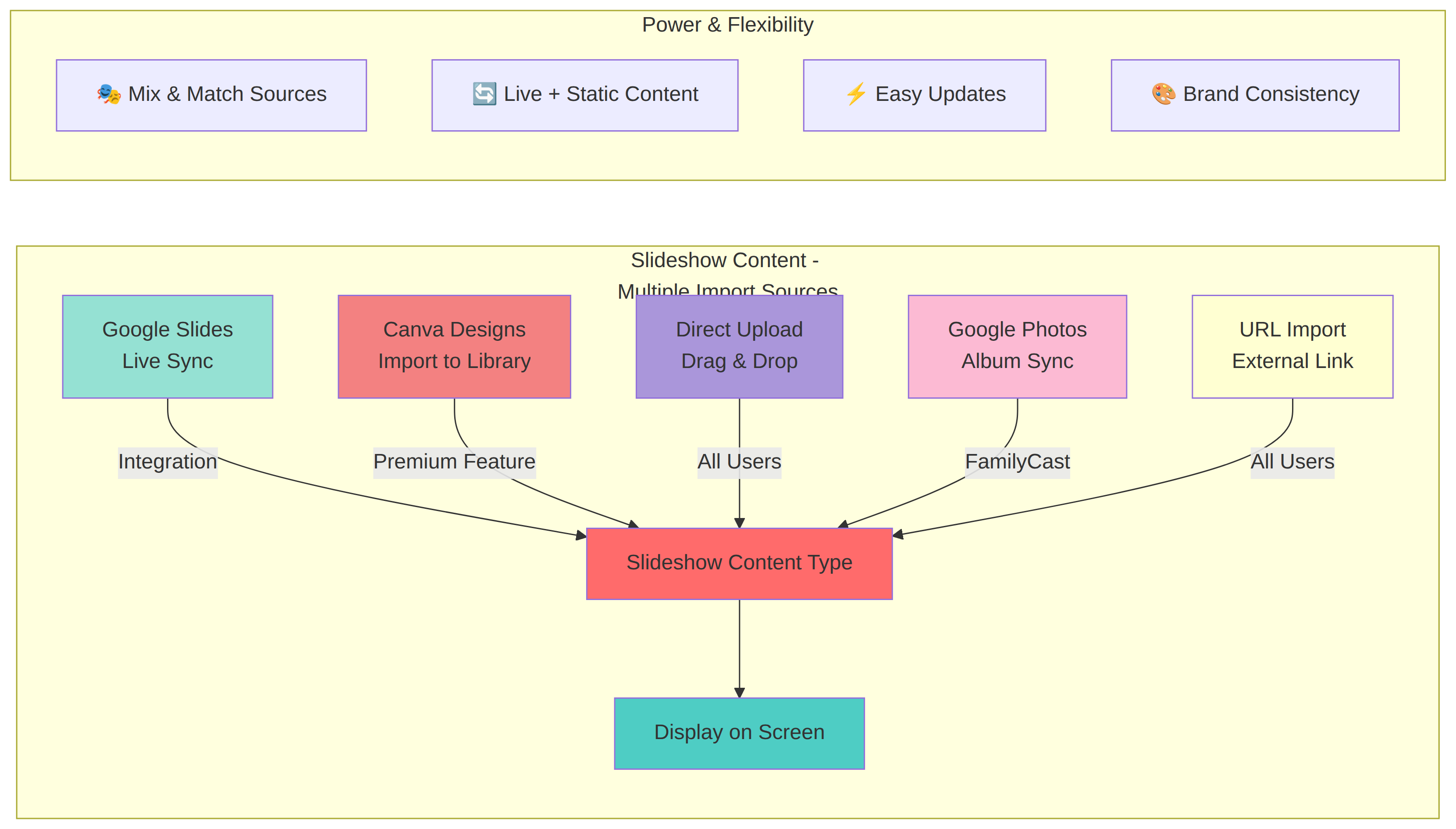
Import Sources Overview
Google Slides Integration (All Plans)
Best For: Live presentations, frequently updated content, collaborative editing
How It Works:
- Connect your Google account
- Select presentations from Google Drive
- BrandCast syncs updates automatically
- Changes appear on displays within minutes
Use Cases:
- Product catalogs updated by marketing team
- Menu boards edited in Google Slides
- Training presentations
- Corporate announcements
- Event schedules
Key Benefits:
- ✅ Live sync - updates automatically
- ✅ Collaborative editing in Google
- ✅ Familiar interface (Google Slides)
- ✅ Version history in Google Drive
- ✅ Works with existing presentations
Setup: Google Slides Integration Guide
Canva Import (Standard Feature)
Best For: Professional marketing graphics, branded content, design-heavy displays
How It Works:
- Connect Canva account (OAuth)
- Browse your Canva designs
- Import designs to Media Library
- Add to slideshow layouts
Use Cases:
- Sale and promotion graphics
- Seasonal campaigns
- Menu boards designed in Canva
- Event posters
- Brand-consistent content
Key Benefits:
- ✅ Professional design tools in Canva
- ✅ Brand kit integration
- ✅ Template library access
- ✅ High-quality PNG export
- ✅ Design at exact display resolution
Availability: Included in all accounts
Setup: Canva Import Guide
Direct Upload (All Plans)
Best For: Local photos, one-off graphics, custom imagery, quick updates
How It Works:
- Drag and drop files to Media Library
- Supports images (JPG, PNG, GIF) and videos (MP4)
- Instant availability in slideshow
- Organize with tags and folders
Use Cases:
- Store-specific photos
- Local event images
- Product photography
- Staff photos
- Community content
- User-generated content
Key Benefits:
- ✅ Fastest method (drag & drop)
- ✅ No external account needed
- ✅ Full control over content
- ✅ Works offline (after upload)
- ✅ Supports video content
Supported Formats:
- Images: JPG, PNG, GIF, WebP
- Video: MP4, WebM
- Max size: 50MB per file
Setup: Direct Upload Guide
URL Import (All Plans)
Best For: Externally hosted images, CDN content, dynamic image URLs
How It Works:
- Provide URL to image
- BrandCast fetches and caches image
- Display in slideshow
- Optional auto-refresh
Use Cases:
- Product images from ecommerce platform
- User-generated content from website
- Real-time graphics from external systems
- Dynamic content from APIs
- Shared assets across multiple systems
Key Benefits:
- ✅ No file upload needed
- ✅ Link to existing assets
- ✅ Update at source
- ✅ Reduce storage usage
- ✅ Integration flexibility
Requirements:
- Publicly accessible URL
- Direct link to image file
- HTTPS recommended
- Stable hosting required
Setup: URL Import Guide
Creating a Slideshow
Step 1: Choose Your Sources
Single Source Slideshow:
Example: Google Slides Product Catalog
- Source: Google Slides integration
- Content: Live-synced presentation
- Updates: Automatic from Google
- Best for: Frequently changing content
Mixed Source Slideshow:
Example: Retail Store Display
- Slide 1-5: Google Slides product catalog (live)
- Slide 6-8: Canva promotional graphics (imported)
- Slide 9-10: Direct uploaded store photos
- Duration: 15 seconds per slide
- Transition: Fade
Multi-Content Slideshow:
Example: Community Board
- Main area: Slideshow (70% screen)
  - Community event photos (direct upload)
  - Canva announcements (imported)
  - Google Slides schedule (live)
- Sidebar: Weather + Calendar (30% screen)
Step 2: Import Your Content
From Google Slides:
- Go to Integrations → Google Slides
- Click Connect Google Account
- Select presentation
- Configure auto-sync settings
From Canva (Premium):
- Go to Content Library → Import from Canva
- Click Connect Canva Account
- Browse your designs
- Click Import Design
Direct Upload:
- Go to Content Library
- Click Upload Media
- Drag and drop files
- Add tags for organization
From URL:
- Go to Content Library
- Click Add from URL
- Paste image URL
- Configure caching options
Step 3: Create Layout with Slideshow
-
Open Layouts → Create New Layout
-
Add Image/Slideshow area to canvas
-
Configure area settings:
- Content Type: Slideshow
- Source: Select imported content
- Duration: Seconds per slide (5-30 recommended)
- Transition: Fade, Slide, or None
- Auto-advance: Enable for automatic rotation
- Loop: Enable to repeat slideshow
-
Add multiple content items to slideshow queue
-
Drag to reorder slides
-
Set individual durations per slide (optional)
Step 4: Configure Slideshow Settings
Timing:
- Slide Duration: 5-30 seconds per slide
- Quick updates: 5-10 seconds
- Detailed content: 15-20 seconds
- Image galleries: 10-15 seconds
- Text-heavy: 20-30 seconds
Transitions:
- Fade: Smooth, professional (recommended)
- Slide: Directional movement
- None: Instant change
- Custom: CSS animations (advanced)
Behavior:
- Auto-advance: Automatically move to next slide
- Loop: Restart from beginning when finished
- Shuffle: Random slide order
- Pause on hover: For interactive displays
Step 5: Assign to Display
- Go to Displays
- Select target display
- Choose Active Layout → Your slideshow layout
- Slideshow begins playing immediately
Slideshow Best Practices
Content Strategy
Mix Dynamic and Static:
70% Static Content (imported/uploaded)
- Evergreen promotional content
- Brand imagery
- Standard messaging

30% Dynamic Content (live integrations)
- Google Slides for product updates
- Real-time pricing
- Event schedules
Content Rotation Planning:
Time of Day Scheduling:
- Morning: Breakfast menu (Google Slides)
- Lunch: Lunch specials (Canva graphics)
- Evening: Dinner menu (Google Slides)
- Overnight: Brand content (direct upload)
Update Frequency:
- Live content (Google Slides): Auto-updates
- Imported content (Canva): Update when designs change
- Static content (uploads): Update as needed
- Seasonal content: Replace quarterly
Design Guidelines
Image Specifications:
For 1920×1080 Displays (16:9):
- Resolution: 1920×1080 pixels (Full HD)
- Aspect ratio: 16:9
- File format: JPG or PNG
- Color space: sRGB
- DPI: 72 (screen optimized)
For 1080×1920 Displays (Portrait):
- Resolution: 1080×1920 pixels
- Aspect ratio: 9:16
- Same format/color requirements
Design Principles:
- Large, readable text (minimum 24pt)
- High contrast colors
- Important content in center 80%
- Safe margins (10% from edges)
- Single focal point per slide
- Minimal text (6-8 words max for quick reads)
File Optimization:
- Compress images before upload
- Target: 500KB - 2MB per image
- Balance quality vs. file size
- Use appropriate format (JPG for photos, PNG for graphics)
Performance Optimization
Slide Count:
- Optimal: 5-15 slides per slideshow
- Maximum: 50 slides (performance considerations)
- More slides = longer cache time
File Sizes:
- Keep individual files under 5MB
- Total slideshow under 100MB
- Larger files = slower transitions
Caching:
- Preloaded: Next 3 slides
- Cached: All slides after first play
- Refresh: On layout change or manual refresh
Network Efficiency:
- Use locally cached content (uploads) for reliability
- Use integrations (Google Slides) for dynamic content
- Mix sources for optimal balance
Advanced Slideshow Techniques
Multi-Source Playlists
Combine Multiple Slideshows:
Playlist: "Daily Content Rotation"

  Layout 1: Morning Slideshow (15 min)
    - Google Slides breakfast menu
    - Canva morning promotions
    - Direct upload staff photos

  Layout 2: Midday Slideshow (15 min)
    - Google Slides lunch menu
    - URL imported product images
    - Canva sale graphics

  Layout 3: Evening Slideshow (15 min)
    - Google Slides dinner menu
    - Direct upload event photos
    - Canva closing announcements
Dynamic Content Zones
Split Screen with Slideshow:
Layout: "Information Hub"

  Main Area (70%): Slideshow
    - Rotating content from all sources
    - 15 seconds per slide
    - Fade transitions

  Top Bar (10%): Live Data
    - Current time + date
    - Weather widget

  Sidebar (20%): Integration Feed
    - RSS news ticker
    - Calendar events
    - Social media feed
Scheduled Content Swapping
Day-Part Scheduling:
Monday-Friday:
  6am-11am: Breakfast Content
  11am-2pm: Lunch Content
  2pm-5pm: Afternoon Specials
  5pm-close: Dinner Content

Weekend:
  All Day: Weekend Special Menu
Seasonal Rotation:
Winter: Holiday-themed slideshows
Spring: Spring sale graphics
Summer: Outdoor dining promotions
Fall: Back-to-school content
A/B Testing Slideshows
Compare Performance:
- Create two versions of slideshow
- Schedule each to different displays
- Track engagement metrics
- Deploy winning version to all displays
Test Variables:
- Slide duration
- Content order
- Transition types
- Content sources (Google Slides vs Canva)
- Text vs. image-heavy slides
Troubleshooting
Slideshow Not Playing
Check:
- Is content imported to Media Library?
- Is layout assigned to display?
- Is display online and connected?
- Are slides in correct order?
Solutions:
- Verify content in Media Library
- Re-assign layout to display
- Check display connection
- Reorder slides in layout editor
Slides Displaying Incorrectly
Common Issues:
- Wrong aspect ratio (16:9 vs 9:16)
- Low resolution images appear pixelated
- Content cut off at edges
- Transitions stuttering
Solutions:
- Match slide dimensions to display resolution
- Use high-resolution source images
- Add safe margins to slide designs
- Reduce file sizes for smoother transitions
Google Slides Not Updating
Check:
- Is Google account still connected?
- Is presentation still accessible?
- What's the refresh interval?
- Has presentation actually changed?
Solutions:
- Reconnect Google account
- Verify sharing settings
- Manually trigger refresh
- Check Google Slides for updates
Canva Import Failing
Check:
- Is Canva account connected?
- Do you own the design?
- Is design too complex?
- Storage quota available?
Solutions:
- Reconnect Canva OAuth
- Verify design ownership
- Simplify design in Canva
- Clear space in Media Library
Use Cases by Industry
Retail Stores
Setup:
- Google Slides: Product catalogs (live updates)
- Canva: Sale graphics and promotions
- Direct Upload: Store event photos
Example Slideshow:
1. Current sale (Canva graphic) - 15 sec
2. Product showcase (Google Slides) - 20 sec
3. Customer testimonials (Direct upload) - 15 sec
4. Upcoming events (Canva design) - 15 sec
5. Store hours (Google Slides) - 10 sec
Restaurants & QSR
Setup:
- Google Slides: Dynamic menu boards
- Canva: Daily specials graphics
- Direct Upload: Food photography
Example Slideshow:
Morning: Breakfast menu (Google Slides live)
Midday: Lunch specials (Canva graphics)
Evening: Dinner menu (Google Slides live)
All Day: Rotating food photos (Direct upload)
Corporate Offices
Setup:
- Google Slides: Department updates
- Canva: HR announcements
- Direct Upload: Team photos and events
Example Slideshow:
1. Company news (Google Slides) - 20 sec
2. Employee recognition (Canva) - 15 sec
3. Team events (Direct upload) - 15 sec
4. Policy updates (Google Slides) - 20 sec
5. Wellness tips (Canva) - 15 sec
Event Venues
Setup:
- Google Slides: Event schedules
- Canva: Sponsor graphics
- Direct Upload: Event photos
Example Slideshow:
1. Today's schedule (Google Slides live) - 20 sec
2. Sponsor logos (Canva) - 10 sec
3. Session highlights (Direct upload) - 15 sec
4. Upcoming events (Google Slides) - 15 sec
5. Venue map (Canva) - 15 sec
Integration with Other Features
Combine with Live Widgets
Slideshow + Dynamic Data:
Main Content Area: Slideshow (60%)
  - Product images from all sources

Sidebar Widgets (40%):
  - Weather forecast
  - Calendar events
  - RSS news feed
  - Social media feed
Playlist Integration
Multiple Slideshows in Rotation:
Playlist Schedule:
  8am-12pm: Morning slideshow
  12pm-5pm: Afternoon slideshow
  5pm-close: Evening slideshow

Each slideshow: Different content sources
Transition: Fade between playlists
Emergency Override
Priority Content:
- Normal operation: Standard slideshow
- Emergency alert: Override with urgent message
- Storm warning: Display weather alerts
- Store closing: Show closing announcement
Next Steps
Get Started:
- Google Slides Integration - Connect presentations
- Content Import Guide - Upload and import content
- Layout Editor - Create slideshow layouts
- Display Management - Deploy to screens
Advanced Topics:
- Playlists - Schedule content rotation
- Content Association - Assign to displays
- Performance Optimization - Optimize playback
Related Features:
- Integrations - Other content sources
- Media Library - Organize content
- Templates - Pre-built slideshow layouts
Ready to create your first slideshow? Start by importing content from your preferred source, then build a layout to showcase it beautifully on your displays.