Integrations
Integrations add dynamic, real-time content to your displays by connecting to external services and data sources.
Understanding Integrations vs. Content Import
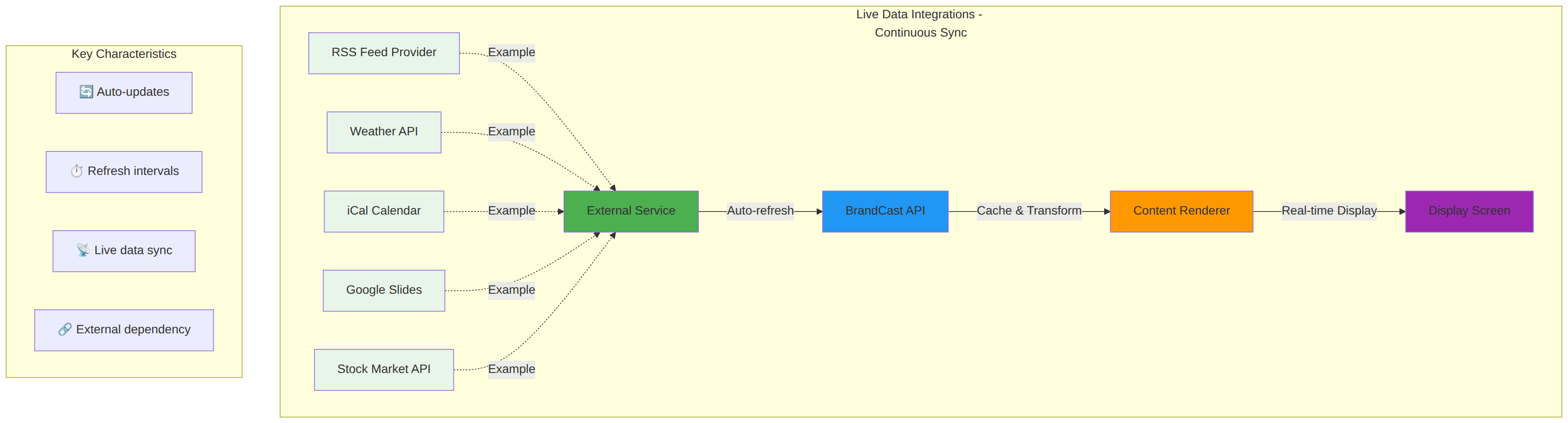
Integrations = Live Data Feeds
Integrations continuously sync data from external services with automatic updates:
- 🔄 Auto-refresh on schedule
- 📡 Real-time data sync
- ⏱️ System-controlled updates
- 🔗 External service dependency
Examples: RSS Feeds, Weather, Calendar (iCal), Google Slides, Stock Market, Social Media
Content Import = Add to Library
Import capabilities let you add content once to your Media Library:
- 📥 Manual import process
- 💾 Stored in your library
- 👤 You control updates
- 🎨 One-time process
Examples: Direct Upload, Canva Import (Premium), URL Import, Google Photos (FamilyCast)
Learn more about Content Import →
Overview
BrandCast supports a wide range of integrations to enhance your displays:
Content & Presentations:
- Google Slides - Display presentations with live sync
Calendars & Events:
- iCal Calendar - Universal calendar integration (works with Google, Apple, Outlook, Cozi, and any iCal source)
Business Operations:
- ZoomShift - Employee scheduling
- Inventory System - Stock levels and inventory
- Scheduling System - Custom scheduling data
Information & Data:
- Weather - Local weather forecasts
- Stock Market - Real-time stock prices and charts
- RSS Feeds - News, blogs, and content feeds
- Quotes - Inspirational and motivational quotes
Entertainment:
- Dad Jokes - Daily humor content
Social & Reviews:
- Social Media Embeds - Instagram, Twitter/X, TikTok posts
Tasks & Productivity:
- Google Tasks - Task list integration
- Cozi Lists - Shared family task lists (FamilyCast)
Available Integrations
Google Slides
Display Google Slides presentations on your screens with automatic updates.
Use Cases:
- Product catalogs
- Training materials
- Marketing presentations
- Menu boards
Setup:
- Navigate to Content Sources in your dashboard
- Click Add Integration
- Select Google Slides
- Authenticate with Google:
- Click Connect Google Account
- Grant BrandCast permission to access your presentations
- Select your presentation:
- Choose from your Google Drive
- Or paste a shareable link
- Configure settings:
- Auto-advance: Slide duration (5-30 seconds recommended)
- Refresh interval: How often to check for updates (15 minutes default)
- Name: Descriptive name for your content source
- Click Save
Configuration Options:
- Slide Duration: 5, 10, 15, 20, 30 seconds, or custom
- Loop: Enable continuous loop of presentation
- Refresh Interval: 5, 15, 30, 60 minutes
- Auto-update: Sync changes from Google Slides automatically
Tips:
- Keep presentations under 20 slides for best performance
- Use high-contrast designs for readability from distance
- Avoid animations - they may not render on all devices
- Update the original file in Google - changes sync automatically
Weather
Display current weather conditions and forecasts for your location.
Use Cases:
- Retail stores - Help customers plan shopping
- Break rooms - Help employees plan their day
- Reception areas - Useful information for visitors
- Outdoor businesses - Show relevant weather alerts
Setup:
- Go to Content Sources → Add Integration
- Select Weather
- Configure location:
- City/ZIP: Enter your location
- Units: Fahrenheit or Celsius
- Format: Current, forecast, or both
- Customize display:
- Show conditions: Temperature, humidity, wind
- Forecast days: 3, 5, or 7 days
- Refresh interval: 15 minutes (recommended)
- Click Save
Display Options:
- Current only: Current temp and conditions
- Forecast only: Multi-day forecast
- Current + Forecast: Both current and upcoming weather
- Compact: Minimal display (temp + icon)
- Detailed: Full conditions with wind, humidity, etc.
Tips:
- 15-minute refresh interval balances freshness with API usage
- Choose units based on your region (F for US, C for most others)
- Show 3-day forecast for break rooms, current-only for customer displays
- Position weather widgets in corners or footers
RSS Feeds
Display news, blog posts, and updates from any RSS-compatible source.
Use Cases:
- Company news and announcements
- Industry news for your business
- Social media updates
- Blog content
- Event updates
- Product announcements
Setup:
- Go to Content Sources → Add Integration
- Select RSS Feed
- Enter feed details:
- Feed URL: The RSS feed URL (e.g.,
https://example.com/feed) - Name: Descriptive name
- Priority: Display order (0 = highest)
- Feed URL: The RSS feed URL (e.g.,
- Configure display:
- Max Items: Number of items to show (default: 20)
- Update Interval: How often to fetch (5 minutes default)
- Display Style: Ticker, list, or cards
- Click Save
Configuration:
- Update Interval: 5, 15, 30, 60 minutes (5 min default)
- Max Items: 5-50 items to cache
- Priority: 0-100 (lower = higher priority)
- Active: Enable/disable feed
Finding RSS Feeds:
- Company blogs: Look for RSS icon or
/feedURL - News sites: Check footer or "Subscribe" sections
- Social media: Twitter, Instagram, Facebook offer RSS alternatives
- Create custom: Services like RSS.app can create feeds from websites
Display Styles:
- Ticker: Scrolling text across bottom or side
- List: Vertical list of headlines
- Cards: Individual cards with image + headline
- Full Content: Show article excerpts
Tips:
- Test feed URL before adding (should return XML when visited)
- Use multiple feeds for variety (combine company + industry news)
- Set priority to control order when mixing multiple feeds
- 5-minute refresh keeps content fresh without excessive API calls
- Include images for visual appeal (not all feeds provide images)
Troubleshooting:
- Feed not updating: Check that feed URL is valid and accessible
- No items showing: Verify feed has published content
- Images missing: Not all RSS feeds include images
- Slow loading: Reduce max items or increase update interval
Calendar Integrations
Display upcoming events and schedules from calendar systems.
iCal Calendar
Display events from any iCal-compatible calendar (Google, Apple, Outlook, etc.).
Use Cases:
- Meeting room schedules
- Event calendars
- Store hours and closings
- Company events
Setup:
- Get your calendar's iCal URL:
- Google Calendar: Settings → Integrate → Secret address in iCal format
- Apple Calendar: Share calendar and copy webcal:// link
- Outlook: Calendar settings → Shared calendars → Publish
- In BrandCast:
- Go to Content Sources → Add Integration
- Select iCal Calendar
- Paste iCal URL
- Name your calendar feed
- Configure display:
- Days to show: 1, 7, 14, 30 days ahead
- Event limit: Max events to display
- Color: Assign color for this calendar
- Click Save
Tips:
- Use "Secret address" from Google Calendar (not public URL)
- You can add multiple calendar feeds (work, personal, company)
- Assign different colors to distinguish calendar sources
- Show 7 days for weekly planning, 1 day for today's schedule
Employee Scheduling - ZoomShift
Display employee schedules from your ZoomShift account.
Use Cases:
- Break room displays - Show who's working today
- Manager displays - Quick schedule overview
- Reception - Know who's available
- Employee check-in - See your shifts
Setup:
- Get ZoomShift API credentials:
- Log into ZoomShift
- Go to Settings → API
- Generate API token
- Copy token (you won't see it again!)
- In BrandCast:
- Go to Content Sources → Add Integration
- Select ZoomShift
- Enter API token
- Name your integration
- Configure display:
- Locations: Select which locations to show
- Departments: Filter by departments
- Days: Today only, or next 7 days
- Refresh: 15-30 minutes recommended
- Click Save
Display Options:
- Today's schedule: Who's working today
- Week view: Full week schedule
- By department: Filter by department
- By location: Multi-location schedule view
Security Notes:
- API token grants full access - keep it secure
- Tokens can be revoked in ZoomShift settings
- Only share schedules on internal displays (not customer-facing)
Tips:
- 30-minute refresh balances freshness with API rate limits
- Filter by location for multi-location businesses
- Use in break rooms - not customer-facing areas (privacy)
- Show "Today's Schedule" for simple daily view
Stock Market Data
Display real-time stock prices, charts, and market data.
Use Cases:
- Financial services offices
- Corporate lobbies
- Break rooms for employees with stock options
- Investment firms
Setup:
- Go to Content Sources → Add Integration
- Select Stock Market
- Create a watchlist:
- Name: Watchlist name (e.g., "Tech Stocks")
- Symbols: Add stock symbols (AAPL, GOOGL, MSFT)
- Display Mode: Ticker, chart, grid, or fullscreen
- Configure refresh:
- Update Interval: 60 seconds (default), 30 seconds, or 5 minutes
- Market hours only: Only update during trading hours
- Click Save
Display Modes:
- Ticker: Scrolling ticker across bottom (classic style)
- Chart: Price chart for selected stock
- Grid: Multiple stocks in grid layout
- Fullscreen: Large display of single stock
Data Shown:
- Current price
- Change amount and percentage
- Volume
- Day high/low
- Market cap
- Previous close
Configuration:
- Symbols: Add up to 20 stocks per watchlist
- Update Interval: 30-60 seconds (1 minute recommended)
- Display Mode: Choose based on layout space
- Active: Enable/disable without deleting
Tips:
- 60-second refresh is optimal (real-time without excessive API calls)
- Use ticker mode for minimal space usage
- Grid mode works well for multiple stocks
- Chart mode best for single-stock focus
- Disable updates outside market hours to save API quota
Market Data Timing:
- Updates only during market hours (9:30 AM - 4:00 PM ET)
- 15-minute delay for free tier (instant for premium)
- After-hours trading not included in free tier
Inspirational Quotes
Display motivational and inspirational quotes on your screens.
Use Cases:
- Break rooms - Employee motivation
- Reception areas - Positive atmosphere
- Retail stores - Customer inspiration
- Corporate offices - Company culture
Setup:
- Go to Content Sources → Add Integration
- Select Quotes
- Configure source:
- Category: Inspirational, motivational, leadership, etc.
- Refresh Rate: Daily, hourly, every 30 minutes
- Display Style: Simple text, card with author, image background
- Click Save
Quote Categories:
- Inspirational - General motivation
- Leadership - Business and leadership
- Success - Achievement and goals
- Wisdom - Philosophical insights
- Humor - Light and funny quotes
Display Styles:
- Simple: Quote text only
- With Author: Quote + attribution
- Card: Styled card with background
- Large Format: Full-screen quote display
Refresh Options:
- Every 5 minutes: Constant variety
- Every 30 minutes: Moderate rotation
- Hourly: Slower rotation
- Daily: One quote per day
Tips:
- Daily refresh works well for break rooms (same quote all day)
- Hourly refresh for customer-facing displays (keeps fresh)
- Choose category that matches your company culture
- Use "With Author" style for professionalism
- Position in footers or side panels
Dad Jokes
Add daily humor to your displays.
Use Cases:
- Break rooms - Lighten the mood
- Retail stores - Engage customers
- Reception areas - Create friendly atmosphere
- Casual office environments
Setup:
- Go to Content Sources → Add Integration
- Select Dad Jokes
- Configure:
- Refresh: Daily or hourly
- Display: Text style and positioning
- Click Save
Display Options:
- Full joke: Question and punchline together
- Reveal animation: Question, then answer after delay
- Card style: Styled card with joke text
Tips:
- Daily refresh keeps it fresh without overdoing it
- Position in corners or footers (subtle placement)
- Use reveal animation for engagement
- Best for casual, fun environments
Integration Management
Viewing All Integrations
- Go to Content Sources
- Filter by Type → Integration
- See all active integrations with status:
- 🟢 Active and updating
- 🟡 Warning (check configuration)
- 🔴 Error (needs attention)
Editing Integrations
- Click on any integration
- Update settings:
- Change refresh intervals
- Update credentials
- Modify display options
- Click Save Changes
Changes apply immediately to all displays using this integration.
Deactivating Integrations
- Go to integration settings
- Toggle Is Active to off
- Click Save
The integration stops updating but remains configured. Re-enable anytime without reconfiguring.
Deleting Integrations
- Click on integration
- Click Delete Integration
- Confirm deletion
Warning: This removes the integration from all layouts using it. Ensure you have a replacement or update your layouts first.
Integration Performance
Caching
BrandCast caches integration data to improve performance:
- Stock Market: 60-second cache
- Weather: 15-minute cache
- RSS Feeds: 5-minute cache
- Calendars: 15-minute cache
- ZoomShift: 30-minute cache
- Quotes: Based on refresh rate
Cached data displays instantly while fresh data fetches in background.
Refresh Intervals
Recommended Settings:
- Real-time data (stocks): 60 seconds
- Dynamic content (RSS, weather): 5-15 minutes
- Scheduled content (calendars, ZoomShift): 15-30 minutes
- Static content (quotes, slides): 30-60 minutes
Why it matters:
- Shorter intervals = More API calls = Higher cost
- Longer intervals = Less fresh data = Better performance
- Balance freshness needs with efficiency
API Rate Limits
Some integrations have API rate limits:
- Stock Market: 500 calls/day (free), unlimited (premium)
- Weather: 1000 calls/day
- ZoomShift: Per your ZoomShift plan
- Google APIs: Per your Google quota
Managing Limits:
- Use appropriate refresh intervals
- Disable integrations during off-hours
- Monitor usage in integration settings
- Upgrade plans if consistently hitting limits
Error Handling
When integrations fail:
- First failure: Displays cached data (if available)
- Repeated failures: Shows error message
- Error logged: Check integration status for details
Common Errors:
- Authentication failed: Reauthorize integration
- Rate limit exceeded: Increase refresh interval
- Network timeout: Check internet connection
- Invalid configuration: Review integration settings
Best Practices
Security
Do:
- Use API keys and tokens securely
- Don't share credentials
- Revoke unused tokens
- Use read-only permissions when possible
Don't:
- Display sensitive data on public screens
- Share employee PII on customer-facing displays
- Use personal accounts for business integrations
- Store credentials in shared documents
Content Strategy
Mixing Integrations:
- Combine static + dynamic content for balance
- Use 2-3 integrations per layout (avoid overcrowding)
- Group related content (weather + calendar together)
- Reserve space for critical integrations
Layout Design:
- Main content: 60-70% of screen
- Integrations: 30-40% of screen
- Dynamic content in sidebars or footers
- Static branding in headers
Refresh Strategy:
- Critical data: Short refresh (60 seconds)
- Important data: Medium refresh (15 minutes)
- Nice-to-have data: Long refresh (60 minutes)
- Don't refresh everything simultaneously
Troubleshooting
Integration not updating:
- Check integration status (green/yellow/red indicator)
- Verify refresh interval isn't too long
- Check API credentials are valid
- Review error logs in integration settings
- Test API connection (click "Test Connection")
Data showing incorrectly:
- Verify integration configuration
- Check data source (RSS feed, calendar, etc.)
- Review display settings (format, style)
- Test in preview mode before deploying
Performance issues:
- Reduce number of integrations per layout
- Increase refresh intervals
- Check internet speed at display location
- Review cache settings
Integration Limits
Limits vary by subscription plan:
Starter Plan:
- 3 active integrations
- Standard refresh rates only
- Community support
Professional Plan:
- 10 active integrations
- Custom refresh rates
- Email support
- API access
Enterprise Plan:
- Unlimited integrations
- Real-time updates
- Priority support
- Dedicated success manager
- Custom integrations available
View your current usage: Settings → Billing → Integration Usage
Related Features
Content Import (Not Integrations)
Looking to add static content to your displays? These are not integrations - they're content import methods:
- Canva Import (Premium) - Import Canva designs to your library
- Direct Upload - Drag and drop your own images/videos
- URL Import - Link to externally hosted images
- Google Photos (FamilyCast) - Sync photo albums
Slideshow Content
Want to display images and presentations? Slideshow Content accepts content from any source:
- Live: Google Slides integration
- Imported: Canva designs (Premium)
- Uploaded: Your own media
- Linked: External URLs
Next Steps
- Content Import - Add static content to your library
- Slideshow Content - Display visual content from any source
- Layouts - Add integrations to your layouts
- Content Library - Combine integrations with media
- Display Setup - Deploy to your displays
- RSS Feeds Guide - Detailed RSS setup
- Troubleshooting - Fix integration issues